
If you have ever tried to unmount a filesystem and hit the dreaded “device is busy” error, or needed to find what is holding a port open, lsof is the tool that answers it immediately.
Every file descriptor, every open socket, every process holding a file handle. lsof sees all of it. The name stands for List Open Files. On Linux, that means almost everything: regular files, directories, block files, character files, libraries, streams, and network sockets. The saying “everything is a file” is exactly why lsof is so powerful.
This guide focuses on practical usage. The commands here are ones I actually run on servers when debugging.
In This Article
Installing lsof
Many distros ship it by default. If not, install it with your package manager. The source is also available on GitHub if you need the latest version.
# Debian / Ubuntu
sudo apt install lsof

# Fedora / RHEL / CentOS
sudo dnf install lsof

# Arch Linux
sudo pacman -S lsof
Verify it is available:
lsof --version
Understanding lsof Output
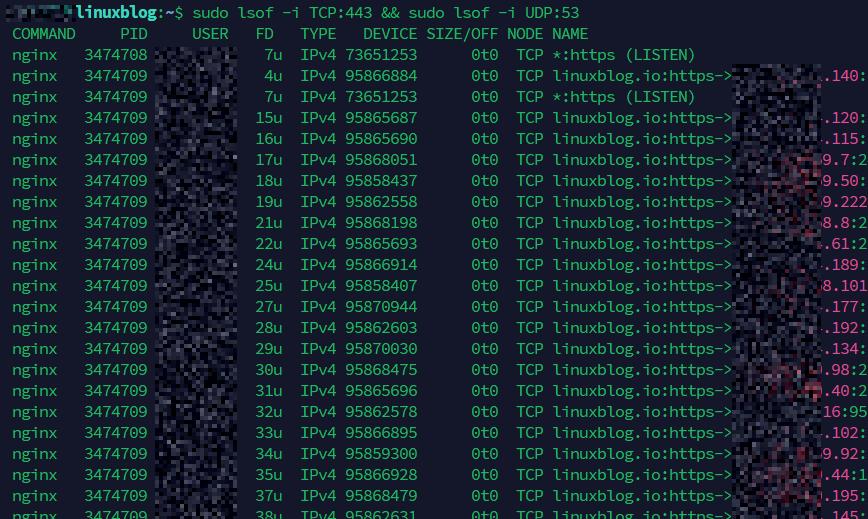
Run lsof without arguments and you will see a flood of output. Every open file on the system. Useful to pipe and filter, not so useful raw. Here is what the columns mean:
COMMAND PID USER FD TYPE DEVICE SIZE/OFF NODE NAME
- COMMAND: Name of the process.
- PID: Process ID.
- USER: User running the process.
- FD: File descriptor. Common values:
cwd(current working directory),txt(program text),mem(memory-mapped file),0u/1u/2u(stdin/stdout/stderr), or a number for regular file descriptors. - TYPE: Type of file.
REG(regular),DIR(directory),IPv4/IPv6,unix(Unix socket),CHR(character device), etc. - DEVICE: Device numbers.
- SIZE/OFF: File size or offset.
- NODE: Inode number for files, or protocol information for network entries.
- NAME: The file or socket name.
The Most Useful lsof Commands
List All Open Files by a Specific Process
Pass the PID with -p:
lsof -p 1234
Or use the process name with -c:
lsof -c nginx
This lists every file descriptor nginx has open. Useful when you suspect a process is holding more open files than expected. Pair it with wc -l for a quick count:
lsof -c nginx | wc -l
Note: If you are hitting open file limit errors on a busy server, also check why your Linux server looks idle but feels slow. Open file descriptor exhaustion is a common hidden culprit.
Find Which Process Is Using a File
This is the classic use case. Something holds a log file open, or a config file cannot be replaced because a process has it locked:
lsof /var/log/syslog
Or check an entire directory:
lsof +D /var/log
Note: +D walks the entire directory tree and can be extremely slow on large filesystems. Avoid running it on high-traffic production paths without narrowing scope first.
Find What Process Is Using a Port
This is probably the second most common reason I reach for lsof. Something is already bound to port 8080 and you need to know what:
lsof -i :8080
Check a range of ports:
lsof -i :8000-9000
Filter by TCP or UDP:
lsof -i TCP:443
lsof -i UDP:53
List all listening ports (the equivalent of ss -tlnp but via lsof):
lsof -i -sTCP:LISTEN
Find Network Activity for a Specific Process
Sometimes you want to see both the open files and active network connections for a single PID in one shot. The -Pan combination handles that:
lsof -Pan -p 1234 -i
-P shows port numbers instead of service names, -a ANDs the filters together, and -n skips DNS resolution for faster output. This is useful when debugging a specific process that you suspect is making unexpected outbound connections or binding to an unintended port.
List All Network Connections
Show every open network file (connections and listeners):
lsof -i
Add -n to skip DNS resolution (faster output) and -P to show port numbers instead of service names:
lsof -i -n -P
This is handy when you want a quick picture of what the system is connected to without waiting for reverse DNS lookups.
List Open Files for a Specific User
lsof -u www-data
To exclude a user, prefix with a caret:
lsof -u ^root
This shows everything except root’s open files. Not always useful on its own, but helpful when filtering in scripts.
Find the Process Using a Specific Library or Binary
After a security update, you sometimes want to know which running processes are still using the old version of a shared library before you restart services:
lsof /usr/lib/libssl.so.3
Or check for any deleted files still held open (common after library updates on Debian/Ubuntu):
lsof | grep deleted
That grep deleted trick is genuinely useful after a package upgrade. If a process has an old version of a library open and the file has been deleted from disk, it shows up here. Those processes need a restart to pick up the new library.
The “Device Is Busy” Fix
You try to unmount a filesystem and Linux refuses:
umount /mnt/data
umount: /mnt/data: target is busy.
Find the culprit immediately:
lsof +D /mnt/data
This shows every process with open files on that mount point. Kill or stop those processes, then unmount cleanly. Much faster than rebooting or guessing.
List Open Files for a Specific Process Name and User Combined
By default, lsof treats multiple filter options as OR. Use -a to AND them together:
lsof -u postgres -a -c postgres
This shows only files opened by processes named postgres running as the postgres user. Without -a you would get all processes by that user plus all processes with that name regardless of user.
Monitor lsof Output in Real Time
lsof does not refresh automatically like top. But you can use watch to simulate it:
watch -n 2 'lsof -i -n -P -sTCP:LISTEN'
This refreshes every 2 seconds and shows listening ports. Useful when you are starting or stopping services and want to confirm ports open and close as expected.
Count Open File Descriptors Per Process
This is useful for identifying processes that are leaking file descriptors:
lsof | awk '{print $1}' | sort | uniq -c | sort -rn | head -20
You will see the top 20 processes by open file count. If one process is hogging thousands of file descriptors, this surfaces it immediately. Cross-reference with vmstat and free if you suspect resource pressure across the board. Also see the guide on increasing max open files if you are hitting system-wide descriptor limits.
Practical Troubleshooting Scenarios
Scenario 1: Web Server Won’t Start
You restart nginx or Apache and get a port conflict error. Find what is sitting on port 80:
lsof -i :80 -n -P
Output example:
COMMAND   PID     USER   FD   TYPE DEVICE SIZE/OFF NODE NAME
apache2   3412    root   4u  IPv6  24891      0t0  TCP *:80 (LISTEN)
There it is. An old Apache process still running. Stop it, then start nginx cleanly.
Scenario 2: Disk Usage Is High but du Shows Nothing
A process wrote a large log file, you deleted it, but df still shows the space as used. The file is deleted on disk but still held open by a process. The space is not reclaimed until the file descriptor is closed. This can silently consume tens of gigabytes on a busy server, especially after log rotation.
lsof | grep deleted | awk '{print $1, $2, $7, $9}'
The fourth column shows the size. Find the large entries, identify the PID, and restart that service. Space reclaimed.
This is one of the most misunderstood disk space issues on Linux servers. Always check for deleted-but-open files before assuming something is wrong with your filesystem.
Scenario 3: Investigating a Suspicious Process
You spot an unfamiliar PID consuming network connections. Pull its full file descriptor list:
lsof -p 5678 -n -P
This shows every file and socket it has open. Combine with pstree to see where it sits in the process hierarchy:
pstree -p 5678
Between the two, you get a clear picture of what the process is doing and where it came from.
Useful lsof Options Quick Reference
-i: List network files (all, or filtered by protocol/port).-i :PORT: Find what process is using a specific port.-a: AND filter conditions together (default is OR).-n: No DNS resolution (faster output).-P: Show port numbers, not service names.+D dir: Recursively list open files in a directory. Slow on large trees.-t: Output PIDs only. Composable:kill $(lsof -t -i :8080).-s TCP:LISTEN: Filter by socket state.-r N: Repeat every N seconds (built-in repeat mode).
The -t flag deserves a special mention. It returns just the PID, which makes it composable:
kill $(lsof -t -i :3000)
That one-liner kills whatever is on port 3000. Use kill -9 only if the process does not respond to a normal kill. Know what you are killing first.
lsof vs ss vs netstat
For network-specific work, ss is faster and more feature-complete than lsof -i. If you are coming from older tooling, the netstat guide covers the transition well. Use lsof when you need to cross-reference network activity with file system access, or when you need to tie a connection back to a specific file or library. They are complementary, not competing. I use ss for a quick network snapshot and lsof when I need to dig deeper.
Also see Boost Your Linux Command Line Productivity for more tools and habits that speed up day-to-day sysadmin work.
Permissions and sudo
Running lsof as a regular user only shows that user’s open files. To see the full system picture, run it with sudo:
sudo lsof -i -n -P
Without sudo, you will see partial results and a lot of “Permission denied” warnings. On production servers, most lsof commands for debugging are going to need root privileges anyway.
Conclusion
lsof is not something you run constantly. But when something is stuck, leaking, or refusing to release resources, it is usually the fastest way to see why.
The commands to keep in muscle memory: lsof -i -n -P for a network connection overview, lsof -i :PORT for port conflicts, lsof | grep deleted for phantom disk usage, and lsof +D /path when a mount refuses to budge.
Learn those four and you will reach for lsof regularly. The rest of the options are there when you need to go deeper.


